
ITR verification process: 5 ways to e-verify your income tax return using Aadhaar OTP, net banking, mobile number
1/8
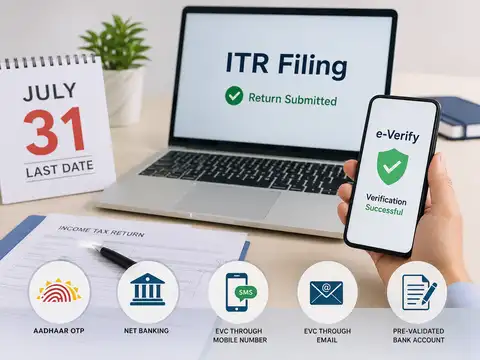
ITR filing last date july 31 verification process
Filing your Income Tax Return (ITR) is only part of the process. Your return must also be verified for being treated as valid by the Income Tax Department. If you do not verify your ITR within the prescribed time, it will be considered invalid, as if it was never filed.
The Income Tax Department allows taxpayers to complete this step online through multiple methods, including Aadhaar OTP, net banking, an Electronic Verification Code (EVC) and a Digital Signature Certificate (DSC). As the July 31, 2026, deadline to file ITR forms 1 and 2 is near now, here's a look at the different ways to e-verify your ITR and the steps involved for each method.
The Income Tax Department allows taxpayers to complete this step online through multiple methods, including Aadhaar OTP, net banking, an Electronic Verification Code (EVC) and a Digital Signature Certificate (DSC). As the July 31, 2026, deadline to file ITR forms 1 and 2 is near now, here's a look at the different ways to e-verify your ITR and the steps involved for each method.

2/8
What are the different ways to e-verify your ITR?
· OTP on the mobile number registered with Aadhaar
· Electronic Verification Code (EVC) through pre-validated bank account
· Net banking
· Digital Signature Certificate (DSC)
· Electronic Verification Code (EVC) through pre-validated bank account
· Net banking
· Digital Signature Certificate (DSC)

3/8
Prerequisites for availing ITR verification service
· Registered user on the ITR e-filing portal needs a valid user ID and password
· Acknowledgement number (to e-verify ITR without logging into the e-filing portal)
· You have filed a return or an e-Return Intermediary (ERI) has filed the return on your behalf (to e-Verify ITR)
· PAN linked with your bank account
· Net banking should be enabled for the preferred bank account
PAN is linked with Aadhaar
· Acknowledgement number (to e-verify ITR without logging into the e-filing portal)
· You have filed a return or an e-Return Intermediary (ERI) has filed the return on your behalf (to e-Verify ITR)
· PAN linked with your bank account
· Net banking should be enabled for the preferred bank account
PAN is linked with Aadhaar
Amazon Top Deals
POWERED BY

4/8
How to e-verify your ITR using net banking
Step 1: Go to the e-filing portal (www.incometax.gov.in) homepage and click e-verify return.
Step 2: On the e-verify return page, enter your PAN, select the Assessment Year, enter the Acknowledgement Number of the ITR filed and the mobile number available with you, and click Continue.
Step 3: Enter the 6-digit OTP received on the mobile number.
Step 4: Click submit.
Step 5: On the e-verify page, select through Net Banking and click Continue.
Step 6: Select the bank through which you want to e-verify and click Continue.
Step 7: Read and understand the disclaimer. Click Continue.
Step 8: Log in to your net banking using your net banking user ID and password.
Step 9: Click the link to log in to e-filing from your bank's website.
Note: You will be logged out of internet banking and logged in to the e-filing portal.
On successful login, you will be taken to the e-filing dashboard.
Step 2: On the e-verify return page, enter your PAN, select the Assessment Year, enter the Acknowledgement Number of the ITR filed and the mobile number available with you, and click Continue.
Step 3: Enter the 6-digit OTP received on the mobile number.
Step 4: Click submit.
Step 5: On the e-verify page, select through Net Banking and click Continue.
Step 6: Select the bank through which you want to e-verify and click Continue.
Step 7: Read and understand the disclaimer. Click Continue.
Step 8: Log in to your net banking using your net banking user ID and password.
Step 9: Click the link to log in to e-filing from your bank's website.
Note: You will be logged out of internet banking and logged in to the e-filing portal.
On successful login, you will be taken to the e-filing dashboard.

5/8
How to e-verify your ITR after generating an Aadhaar OTP
Step 1: Go to the e-filing portal (www.incometax.gov.in) homepage and click e-verify Return.
Step 2: On the e-verify return page, enter your PAN, select the Assessment Year, enter the Acknowledgement Number of the ITR filed and the mobile number available with you, and click Continue.
Step 3: Enter the 6-digit OTP received on the mobile number.
Step 4: Click 'Submit'.
Step 5: On the e-verify page, select I would like to verify using OTP on the mobile number registered with Aadhaar and click Continue.
Step 6: On the Aadhaar OTP page, select the 'I agree to validate my Aadhaar details' checkbox and click 'Generate Aadhaar OTP.'
Step 7: Enter the 6-digit OTP received on your mobile number registered with Aadhaar and click Validate.
Step 2: On the e-verify return page, enter your PAN, select the Assessment Year, enter the Acknowledgement Number of the ITR filed and the mobile number available with you, and click Continue.
Step 3: Enter the 6-digit OTP received on the mobile number.
Step 4: Click 'Submit'.
Step 5: On the e-verify page, select I would like to verify using OTP on the mobile number registered with Aadhaar and click Continue.
Step 6: On the Aadhaar OTP page, select the 'I agree to validate my Aadhaar details' checkbox and click 'Generate Aadhaar OTP.'
Step 7: Enter the 6-digit OTP received on your mobile number registered with Aadhaar and click Validate.

6/8
How to e-verify your ITR using an existing Aadhaar OTP
Step 1: Go to the e-filing portal (www.incometax.gov.in) homepage and click e-Verify Return.
Step 2: On the e-Verify return page, enter your PAN, select the Assessment Year, enter the Acknowledgement Number of the ITR filed and the mobile number available with you, and click Continue.
Step 3: Enter the 6-digit OTP received on the mobile number
Step 4: Click Submit.
Step 5: On the e-Verify page, select 'I already have an OTP on mobile number registered with Aadhaar.
Step 6: Enter the 6-digit OTP available with you, and click Continue.
Step 2: On the e-Verify return page, enter your PAN, select the Assessment Year, enter the Acknowledgement Number of the ITR filed and the mobile number available with you, and click Continue.
Step 3: Enter the 6-digit OTP received on the mobile number
Step 4: Click Submit.
Step 5: On the e-Verify page, select 'I already have an OTP on mobile number registered with Aadhaar.
Step 6: Enter the 6-digit OTP available with you, and click Continue.

7/8
How to e-verify your ITR using an existing Electronic Verification Code (EVC)
Step 1: Go to the e-filing portal (www.incometax.gov.in) homepage and click e-Verify Return.
Step 2: On the e-verify return page, enter your PAN, select the Assessment Year, enter the Acknowledgement Number of the ITR filed and the mobile number available with you, and click Continue.
Step 3: Enter the 6-digit OTP received on the mobile number.
Step 4: Click Submit.
Step 5: On the e-verify page, select 'I already have an Electronic Verification Code (EVC)'.
Step 6: Enter EVC in the 'Enter EVC' textbox and click Continue.
Step 2: On the e-verify return page, enter your PAN, select the Assessment Year, enter the Acknowledgement Number of the ITR filed and the mobile number available with you, and click Continue.
Step 3: Enter the 6-digit OTP received on the mobile number.
Step 4: Click Submit.
Step 5: On the e-verify page, select 'I already have an Electronic Verification Code (EVC)'.
Step 6: Enter EVC in the 'Enter EVC' textbox and click Continue.

8/8
How to e-verify after generating an Electronic Verification Code (EVC) through a bank account?
Step 1: Go to the e-filing portal (www.incometax.gov.in) homepage and click e-verify Return.
Step 2: On the e-Verify Return page, enter your PAN, select the Assessment Year, enter the Acknowledgement Number of the ITR filed and the mobile number available, and click Continue.
Step 3: Enter the 6-digit OTP received on the mobile number.
Step 4: Click Submit.
Step 5: On the e-verify page, select 'Through Bank Account' and click Continue.
Step 6: Enter the EVC received on your mobile number and email ID registered with your bank account in the 'Enter EVC' textbox and click e-Verify.
Step 2: On the e-Verify Return page, enter your PAN, select the Assessment Year, enter the Acknowledgement Number of the ITR filed and the mobile number available, and click Continue.
Step 3: Enter the 6-digit OTP received on the mobile number.
Step 4: Click Submit.
Step 5: On the e-verify page, select 'Through Bank Account' and click Continue.
Step 6: Enter the EVC received on your mobile number and email ID registered with your bank account in the 'Enter EVC' textbox and click e-Verify.