
Making payments using the Google Tez app

1/3
Getting started
Get the app: Tez can be downloaded from the Apple iOS or Google Play store.
Add registered mobile number: For the app to work, the mobile number that should be registered should be the same as the number registered with your bank account.
Create a Google PIN: A 4-digit Google PIN has to be set up for the app to work.
Add bank account: Choose your bank from the list. A secure message will then be sent from the registered mobile number and your bank account details will be captured. Next, enter the last 6 digits of your debit card number and its expiry date. Lastly, enter the OTP sent to you by the bank.
Add registered mobile number: For the app to work, the mobile number that should be registered should be the same as the number registered with your bank account.
Create a Google PIN: A 4-digit Google PIN has to be set up for the app to work.
Add bank account: Choose your bank from the list. A secure message will then be sent from the registered mobile number and your bank account details will be captured. Next, enter the last 6 digits of your debit card number and its expiry date. Lastly, enter the OTP sent to you by the bank.

2/3
Making payments
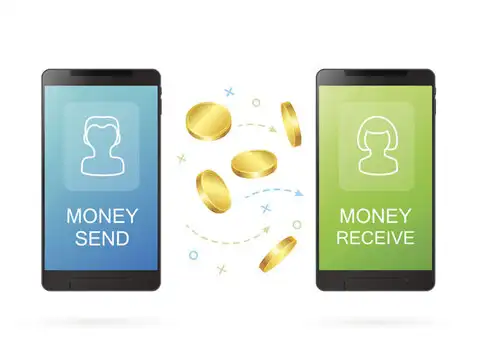
To make a payment, enter the name of the person you want to send money to, the amount, and a brief description of the transaction. Enter the MPIN to authorise the payment.
3/3
Cash mode
The person to whom the payment is to be made through cash mode should have the Tez app as well. They also need to be in your vicinity and have to activate 'Receive' mode on their app. The payee need not be a saved contact on your phone. You just need to enter the amount to be transferred and the reason for transfer.