How to submit digital life certificate (Jeevan Pramaan) using Face Recognition Service
With the introduction of a Face-Recognition system based on the Aadhar database, the government has now made it possible for anyone with an Android smartphone to submit a DLC.
By Sneha Kulkarni, ET Online | Updated:

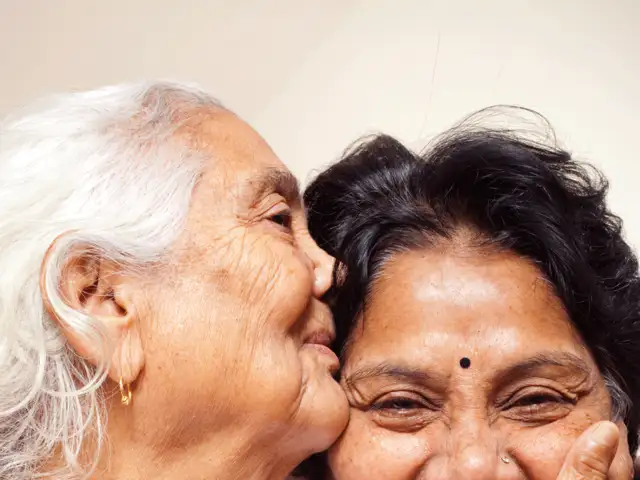
Getty Images
In order to continue receiving pension, retirees must submit their life certificates every year in the month of November (with a special provision for pensioners 80 years of age and older to submit their life certificates in the month of October).
In the past, pensioners had to physically submit their Life Certificate to the Pension Disbursing Authority, which was cumbersome, especially for elderly, ill, and infirm pensioners. Additionally, there was no way for pensioners to check the status of the updating of their Life Certificates in the Pension Disbursing Authority's records.
DLC submission using biometrics was started earlier. The government has now created a Face-Recognition technology system based on the Aadhar database, allowing anyone with an Android-based smartphone to provide a DLC. Jitendra Singh, Minister of State for Personnel, PG and Pensions urged all pensioners to avail the facility of Face Authentication technology.
According to the Department of Pension tweet here is how to submit the life certificate:
Step 1: Go to the Google Play Store and download the AadhaarFaceID app.
https://play.google.com/store/apps/details?id=in.gov.uidai.facerd
or Visit https://jeevanpramaan.gov.in/ to download the Face Application
Step 2: Provide the appropriate authorisations
Step 3: Complete operator authentication and scan the operator's face.
Note that this is a one-time process. Pensioners might also work as operators.
Step 4: The device is now ready for DLC generation and pensioner authentication.
Step 5: Fill in the pensioner information.
Step 6: Scan a live photograph of the pensioner.
Note: Use proper lighting to photograph a front pose with a neutral expression.
Step 7: Click Submit
A message with a link to download DLC will be sent to the mobile number provided during pensioner authentication.
The government has now created a Face-Recognition technology system based on the Aadhar database, allowing anyone with an Android-based smartphone to submit their DLC (digital life certificate).
Points to note
• The face app may be used without a biometric device because it uses the phone's camera to take a picture of the user's face.
In the past, pensioners had to physically submit their Life Certificate to the Pension Disbursing Authority, which was cumbersome, especially for elderly, ill, and infirm pensioners. Additionally, there was no way for pensioners to check the status of the updating of their Life Certificates in the Pension Disbursing Authority's records.
DLC submission using biometrics was started earlier. The government has now created a Face-Recognition technology system based on the Aadhar database, allowing anyone with an Android-based smartphone to provide a DLC. Jitendra Singh, Minister of State for Personnel, PG and Pensions urged all pensioners to avail the facility of Face Authentication technology.
How to submit digital life certificate (Jeevan Pramaan) through Face Recognition Service
According to the Department of Pension tweet here is how to submit the life certificate:Step 1: Go to the Google Play Store and download the AadhaarFaceID app.
https://play.google.com/store/apps/details?id=in.gov.uidai.facerd
or Visit https://jeevanpramaan.gov.in/ to download the Face Application
Step 2: Provide the appropriate authorisations
Step 3: Complete operator authentication and scan the operator's face.
Note that this is a one-time process. Pensioners might also work as operators.
Step 4: The device is now ready for DLC generation and pensioner authentication.
Step 5: Fill in the pensioner information.
Step 6: Scan a live photograph of the pensioner.
Note: Use proper lighting to photograph a front pose with a neutral expression.
Step 7: Click Submit
A message with a link to download DLC will be sent to the mobile number provided during pensioner authentication.
ADVERTISEMENT









Points to note
• The face app may be used without a biometric device because it uses the phone's camera to take a picture of the user's face.
ADVERTISEMENT
• Only in India can you download the Jeevan Pramaan face app.






Download
The Economic Times Business News App for the Latest News in Business, Sensex, Stock Market Updates & More.
The Economic Times Business News App for the Latest News in Business, Sensex, Stock Market Updates & More.
Download
The Economic Times News App for Quarterly Results, Latest News in ITR, Business, Share Market, Live Sensex News & More.
The Economic Times News App for Quarterly Results, Latest News in ITR, Business, Share Market, Live Sensex News & More.
ADVERTISEMENT