Nine tips and tricks to get the most out of your iPhone's email app
There are a few features in iOS that make it easy to save drafts, type emails faster, and see your newest emails on your lock screen right away.
By Business Insider | Updated:

By Lisa Eadicicco
Managing your email can be a daunting task, especially if you're constantly sending messages from your phone.
Luckily, there are a few features in iOS that make it easy to save drafts, type emails faster, and see your newest emails on your lock screen right away.
Here are a few pointers that can help you get the most out of the Mail app on your iPhone.
(Note: These tips work on iPhones running iOS 8, Apple's latest iPhone software version).
1. You can minimize email drafts and save them for later
2. Use gesture shortcuts, such as swiping to the right on any email to mark it as read
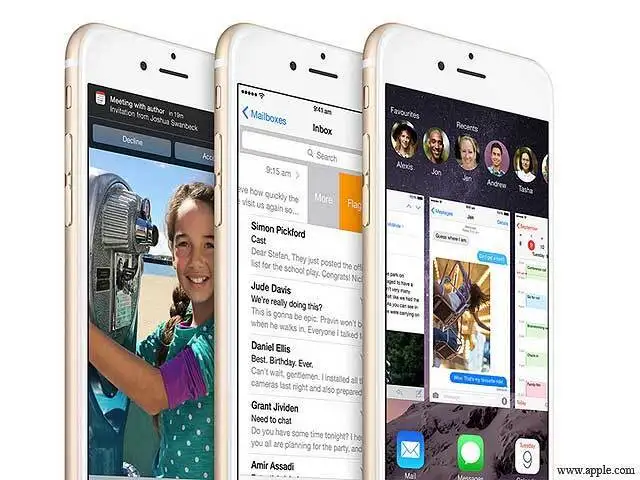
There are a few handy gesture shortcuts in your iPhone's Mail app that make it easier to clean up your inbox. You can automatically mark a message as read without having to open it by swiping to the right on any email. You'll see the blue box that says "Mark as Read," as shown in the picture to the right.
3. If you swipe to the left on any email, you'll get another menu of choices
4. Access a bunch of other options by tapping the "More" button
5. If you swipe all the way to the left on an email, you can automatically archive it
If you just want to archive a message quickly without dealing with any menus, just swipe all the way to the left on any email. This tells your phone to archive it.
6. Use a third-party keyboard app to type emails faster
Ever since last fall you've been able to use third-party keyboards on the iPhone, which means you don't have to stick with the keyboard Apple automatically puts on your phone if you don't want to. Some of these keyboards, such as Swype, can make it easier to type emails more quickly with one hand — especially if you're using the large-screened iPhone 6 Plus. With Swype, for instance, you can type by swiping from letter to letter on the keyboard rather than tapping each key.
7. Turn on "Handoff" so that you can start an email on your iPhone and finish it on your Mac
Apple has a feature called "Handoff" that lets you pick up where you left off when switching between your iPhone and your Mac. To use this feature, you'll have to make sure your Mac is running OS X Yosemite.
8. Use the Spotlight Search bar to quickly find important messages
If you need to quickly sift through messages, you can do so without even launching the Mail app. Drag down from the top of the screen to reveal the Spotlight Search bar. Since this search bar is capable of going through your emails, you can type in the subject of an email, the name of the sender or recipient, or any other key words to find emails quickly.
9. If you want to see emails right away, make sure they appear on your iPhone's lock screen
If you really want to see emails as they come in without having to launch the Mail app, set up your notifications so that emails appear on the lock screen. To do this, head over to Settings>Notifications>Mail. From there, click on whichever inbox you want to see on the lock screen. Then, make sure "Show on Lock Screen" is turned on.
Managing your email can be a daunting task, especially if you're constantly sending messages from your phone.
Luckily, there are a few features in iOS that make it easy to save drafts, type emails faster, and see your newest emails on your lock screen right away.
Here are a few pointers that can help you get the most out of the Mail app on your iPhone.
(Note: These tips work on iPhones running iOS 8, Apple's latest iPhone software version).
1. You can minimize email drafts and save them for later
ADVERTISEMENT
If you're typing an email, simply tap the area where the subject line is and drag it down to the bottom of your screen. Now your email is minimized at the bottom of your inbox, and you can tap it again at any time to access it. This makes it easy to switch back and forth between your inbox and the message you're working on. 2. Use gesture shortcuts, such as swiping to the right on any email to mark it as read
There are a few handy gesture shortcuts in your iPhone's Mail app that make it easier to clean up your inbox. You can automatically mark a message as read without having to open it by swiping to the right on any email. You'll see the blue box that says "Mark as Read," as shown in the picture to the right.
3. If you swipe to the left on any email, you'll get another menu of choices
ADVERTISEMENT
If you don't want to mark an email as read but still want to move it, try swiping to the left on any email. This will bring up a few choices, such as flagging an email or archiving it. 4. Access a bunch of other options by tapping the "More" button
ADVERTISEMENT
When you swipe to the left to reveal the"Flag" and "Archive" buttons, you'll also notice there's also a "More" option that appears. When you can tap it, you'll launch a separate menu with more choices such as the ability to mark an email as unread, reply to an email, forward an email, and more. 5. If you swipe all the way to the left on an email, you can automatically archive it
If you just want to archive a message quickly without dealing with any menus, just swipe all the way to the left on any email. This tells your phone to archive it.
6. Use a third-party keyboard app to type emails faster
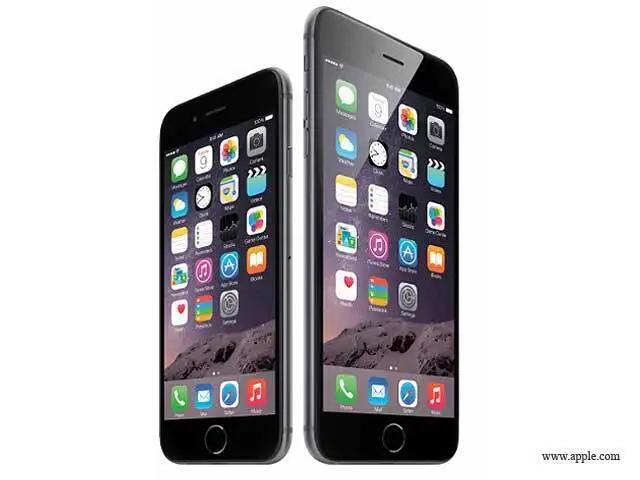
Ever since last fall you've been able to use third-party keyboards on the iPhone, which means you don't have to stick with the keyboard Apple automatically puts on your phone if you don't want to. Some of these keyboards, such as Swype, can make it easier to type emails more quickly with one hand — especially if you're using the large-screened iPhone 6 Plus. With Swype, for instance, you can type by swiping from letter to letter on the keyboard rather than tapping each key.
7. Turn on "Handoff" so that you can start an email on your iPhone and finish it on your Mac
Apple has a feature called "Handoff" that lets you pick up where you left off when switching between your iPhone and your Mac. To use this feature, you'll have to make sure your Mac is running OS X Yosemite.
8. Use the Spotlight Search bar to quickly find important messages
If you need to quickly sift through messages, you can do so without even launching the Mail app. Drag down from the top of the screen to reveal the Spotlight Search bar. Since this search bar is capable of going through your emails, you can type in the subject of an email, the name of the sender or recipient, or any other key words to find emails quickly.
9. If you want to see emails right away, make sure they appear on your iPhone's lock screen
If you really want to see emails as they come in without having to launch the Mail app, set up your notifications so that emails appear on the lock screen. To do this, head over to Settings>Notifications>Mail. From there, click on whichever inbox you want to see on the lock screen. Then, make sure "Show on Lock Screen" is turned on.
Download
The Economic Times Business News App for the Latest News in Business, Sensex, Stock Market Updates & More.
The Economic Times Business News App for the Latest News in Business, Sensex, Stock Market Updates & More.
Download
The Economic Times News App for Quarterly Results, Latest News in ITR, Business, Share Market, Live Sensex News & More.
The Economic Times News App for Quarterly Results, Latest News in ITR, Business, Share Market, Live Sensex News & More.
Related Articles
 Apple iPhone 18 Pro price, release date, colours, specs, camera and battery: Everything we know so far2026-06-11T12:56:59Z
- iOS 27 Beta arrives with Siri AI upgrade: Here's the list of supported iPhones, release details and how to download iOS 27 beta 12026-06-08T19:43:20Z
- WWDC 2026 Expectations: Check expected announcements around iPhone features, AI and software updates2026-06-08T17:21:36Z
You can send audio snippets and video messages that expire after two minutes.
If you head to Settings>Messages and scroll to the bottom, you’ll notice a section for audio and video messages.
You can choose to let them expire after two minutes or never.
If you head to Settings>Messages and scroll to the bottom, you’ll notice a section for audio and video messages.
You can choose to let them expire after two minutes or never.


ADVERTISEMENT


