14 Things You Can Do In Windows 10 That You Couldn't Do In Windows 8
These are some of the best new features and functions Microsoft has added to its all-encompassing operating system.
By Gizmodo | Updated:

David Nield, Gawker Media
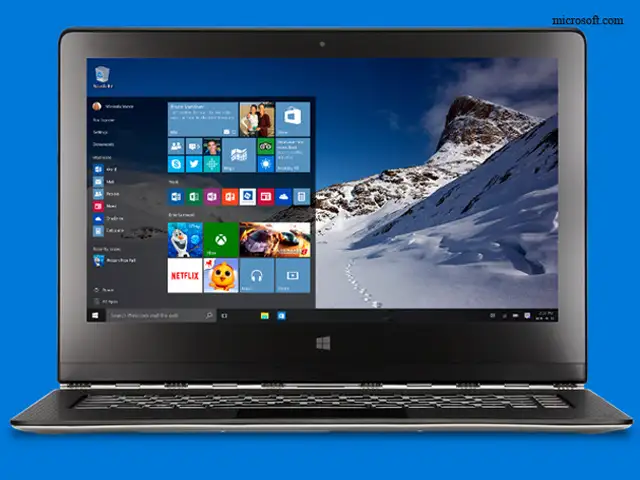
Did you hear there's a new version of Windows in town? If your Windows 8-toting friends ask you exactly what you can do with the new Windows 10 that they can't do on their own machines, here's what to tell them. These are some of the best new features and functions Microsoft has added to its all-encompassing operating system.
1. Get chatty with Cortana
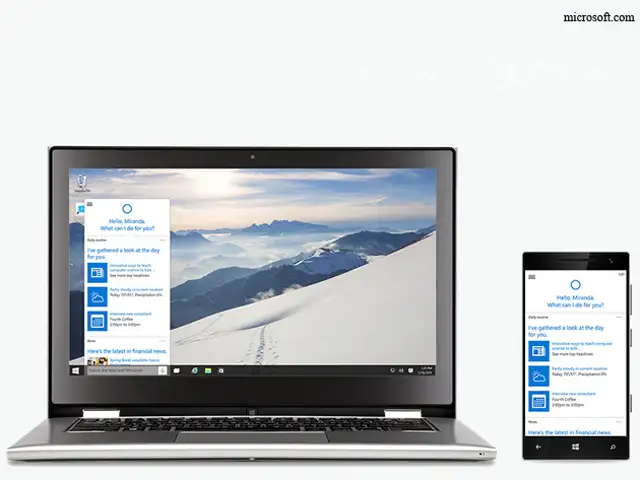
Cortana arrives on the desktop! As on Windows Phone, you can ask questions about the weather or famous pop stars, get directions home, set reminders, and more besides-you can also get her to turn Windows settings such as wifi and Bluetooth on or off. Click the Cortana button on the Start menu to get started (the "hey Cortana!" voice activation feature is optional).
2. Snap windows to corners
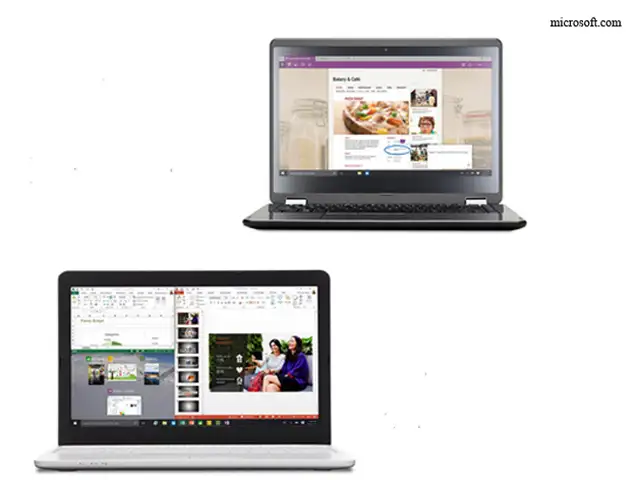
If you're still restricting your window snapping to either side of the screen, you're living in the past-Windows is all about quadrants since July 29. Drag open windows into the corners of the screen to pin them to a particular quarter of the display, or use the Windows key+cursor key keyboard shortcuts. You can of course still snap windows side-by-side as well.
3. Analyze the storage space on your PC
In the pre-Windows 10 days, you needed to get a third-party application involved if you wanted to take a proper look at the layout of files and drives on your system. With Windows 10, there's a tool built-in: Type "storage" in the taskbar search box, choose the Storage setting, and you can see exactly what types of files (like music or video) are taking up your hard drive space.
4. Add a new virtual desktops
At long last virtual desktops make their way to Windows, so all you power users can spread out your apps across multiple screens (the taskbar and desktop shortcuts remain consistent over all of them). Click the Task View button on the taskbar (or press Windows key+Tab) to bring up an overview of your desktops, add new ones or remove existing ones.
5. Use a fingerprint instead of a password
This is part of the Windows Hello biometric platform, and whether or not you can make use of it depends on the make and model of computer you're using Windows 10 on. As well as fingerprint sensing, it supports face recognition and even iris scanning, so if computer manufacturers are prepared to build this kind of kit into their systems then Microsoft's new OS is able to support it.
6. Manage your notifications
Windows 10 comes with a revamped Action Center that lives on the right-hand side of the desktop and provides a stream of all the notifications that come in from any application (no more wondering exactly what Dropbox said while you were looking out of the window). Click the notifications icon (a speech bubble) in the system tray to open and configure it.
7. Switch to a dedicated tablet mode
Windows 8 tried to squash a tablet mode and a desktop mode into one ungainly whole, but everything is far more civilized in the new Windows 10 interface. Open up the aforementioned Action Center to switch manually to tablet mode or get out of it again. In fact you may prefer using the stripped-down tablet mode even when you have a mouse and a keyboard attached.
8. Stream Xbox One games
Streaming games from one place to another isn't a completely original idea, but the link Microsoft has built between the Xbox One and Windows 10 machines could be the best use of the technology yet. If the kids want to use the big screen in the living room you can stream your Xbox One gaming up to your laptop or desktop upstairs (if your home network can cope).
9. Run Microsoft Edge
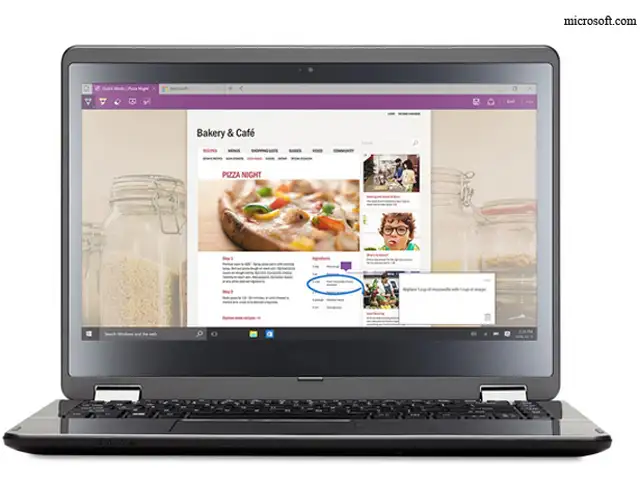
Microsoft's new stripped-down, streamlined browser is a Windows 10 exclusive, and you can't run it on Windows 8 or below. Only Windows 10 users can take advantage of web page annotations, the clutter-free Reading View and Cortana search integration. Whether it's enough to oust Chrome or Firefox as your browser-of-choice remains to be seen.
10. Put the Recycle Bin on the Start menu
Perhaps not the most mind-blowing new feature ushered in with Windows 10 but plenty of you are going to find it useful anyway-you can pin a Recycle Bin shortcut to the Start menu for the very first time (Windows 8 didn't even have a Start menu of course). Search for the Recycle Bin from the taskbar, right-click on the link that appears and choose Pin to Start. You can do the same from File Explorer too.
11. Share wifi passwords with your friends
he new Wi-Fi Sense feature (in network settings) has attracted its fair share of controversy but it's an easy way of letting people use your home wifi while they're visiting (and for you to use theirs in return). Your contacts never actually see the password but if they're linked to you and also on a Windows 10 bit of kit they can just start browsing as soon as they get through the door.
12. Find settings easily
Settings is another area where Windows 10 does a better job of presenting information to the user than Windows 8 did. More of the key system settings have been moved over to the modern interface-search for Settings from the taskbar to see them-so you're going to be spending less time hunting for Control Panel (though the old utilities and links are still there if you need them).
13. Set up Windows to work with iOS and Android
Microsoft has decided to embrace iOS and Android and now makes most of its apps available for the competing mobile platforms (Cortana apps are apparently imminent). Run the Phone Companion app from the Start menu and you can launch a step-by-step guide to getting your iPhone 6 or LG G4 working smoothly with all the data and apps you've got stored on Windows.
14. Run modern apps on the desktop
We've already mentioned some of the ways in which Microsoft is refining the tablet vs desktop experience in Windows 10, and another improvement in this new OS is the ability to run modern (aka Metro) apps in windowed mode as well as full-screen mode. The apps themselves have been improved too, so they're worth a second look if you didn't like the Windows 8 versions.
Did you hear there's a new version of Windows in town? If your Windows 8-toting friends ask you exactly what you can do with the new Windows 10 that they can't do on their own machines, here's what to tell them. These are some of the best new features and functions Microsoft has added to its all-encompassing operating system.
1. Get chatty with Cortana
Cortana arrives on the desktop! As on Windows Phone, you can ask questions about the weather or famous pop stars, get directions home, set reminders, and more besides-you can also get her to turn Windows settings such as wifi and Bluetooth on or off. Click the Cortana button on the Start menu to get started (the "hey Cortana!" voice activation feature is optional).
2. Snap windows to corners
If you're still restricting your window snapping to either side of the screen, you're living in the past-Windows is all about quadrants since July 29. Drag open windows into the corners of the screen to pin them to a particular quarter of the display, or use the Windows key+cursor key keyboard shortcuts. You can of course still snap windows side-by-side as well.
ADVERTISEMENT
3. Analyze the storage space on your PC
In the pre-Windows 10 days, you needed to get a third-party application involved if you wanted to take a proper look at the layout of files and drives on your system. With Windows 10, there's a tool built-in: Type "storage" in the taskbar search box, choose the Storage setting, and you can see exactly what types of files (like music or video) are taking up your hard drive space.
4. Add a new virtual desktops
At long last virtual desktops make their way to Windows, so all you power users can spread out your apps across multiple screens (the taskbar and desktop shortcuts remain consistent over all of them). Click the Task View button on the taskbar (or press Windows key+Tab) to bring up an overview of your desktops, add new ones or remove existing ones.
ADVERTISEMENT
5. Use a fingerprint instead of a password
This is part of the Windows Hello biometric platform, and whether or not you can make use of it depends on the make and model of computer you're using Windows 10 on. As well as fingerprint sensing, it supports face recognition and even iris scanning, so if computer manufacturers are prepared to build this kind of kit into their systems then Microsoft's new OS is able to support it.
ADVERTISEMENT
6. Manage your notifications
Windows 10 comes with a revamped Action Center that lives on the right-hand side of the desktop and provides a stream of all the notifications that come in from any application (no more wondering exactly what Dropbox said while you were looking out of the window). Click the notifications icon (a speech bubble) in the system tray to open and configure it.
7. Switch to a dedicated tablet mode
Windows 8 tried to squash a tablet mode and a desktop mode into one ungainly whole, but everything is far more civilized in the new Windows 10 interface. Open up the aforementioned Action Center to switch manually to tablet mode or get out of it again. In fact you may prefer using the stripped-down tablet mode even when you have a mouse and a keyboard attached.
8. Stream Xbox One games
Streaming games from one place to another isn't a completely original idea, but the link Microsoft has built between the Xbox One and Windows 10 machines could be the best use of the technology yet. If the kids want to use the big screen in the living room you can stream your Xbox One gaming up to your laptop or desktop upstairs (if your home network can cope).
9. Run Microsoft Edge
Microsoft's new stripped-down, streamlined browser is a Windows 10 exclusive, and you can't run it on Windows 8 or below. Only Windows 10 users can take advantage of web page annotations, the clutter-free Reading View and Cortana search integration. Whether it's enough to oust Chrome or Firefox as your browser-of-choice remains to be seen.
10. Put the Recycle Bin on the Start menu
Perhaps not the most mind-blowing new feature ushered in with Windows 10 but plenty of you are going to find it useful anyway-you can pin a Recycle Bin shortcut to the Start menu for the very first time (Windows 8 didn't even have a Start menu of course). Search for the Recycle Bin from the taskbar, right-click on the link that appears and choose Pin to Start. You can do the same from File Explorer too.
11. Share wifi passwords with your friends
he new Wi-Fi Sense feature (in network settings) has attracted its fair share of controversy but it's an easy way of letting people use your home wifi while they're visiting (and for you to use theirs in return). Your contacts never actually see the password but if they're linked to you and also on a Windows 10 bit of kit they can just start browsing as soon as they get through the door.
12. Find settings easily
Settings is another area where Windows 10 does a better job of presenting information to the user than Windows 8 did. More of the key system settings have been moved over to the modern interface-search for Settings from the taskbar to see them-so you're going to be spending less time hunting for Control Panel (though the old utilities and links are still there if you need them).
13. Set up Windows to work with iOS and Android
Microsoft has decided to embrace iOS and Android and now makes most of its apps available for the competing mobile platforms (Cortana apps are apparently imminent). Run the Phone Companion app from the Start menu and you can launch a step-by-step guide to getting your iPhone 6 or LG G4 working smoothly with all the data and apps you've got stored on Windows.
14. Run modern apps on the desktop
We've already mentioned some of the ways in which Microsoft is refining the tablet vs desktop experience in Windows 10, and another improvement in this new OS is the ability to run modern (aka Metro) apps in windowed mode as well as full-screen mode. The apps themselves have been improved too, so they're worth a second look if you didn't like the Windows 8 versions.
Download
The Economic Times Business News App for the Latest News in Business, Sensex, Stock Market Updates & More.
The Economic Times Business News App for the Latest News in Business, Sensex, Stock Market Updates & More.
Download
The Economic Times News App for Quarterly Results, Latest News in ITR, Business, Share Market, Live Sensex News & More.
The Economic Times News App for Quarterly Results, Latest News in ITR, Business, Share Market, Live Sensex News & More.
Related Articles
 US shortens cyber fix window to three days as AI threats rise
Text: AP
It took just a weekend to get comfortable with Microsoft's new Windows 10 operating system, something which never happened with its predecessor, Windows 8, even after nearly three years.
With the latest update, Windows no longer feels jarring. Best part: This update is free.
Windows 8 was Microsoft's way of modernizing personal computers, as smartphones and tablets grew more popular. But it came across as trying to shove a square peg into a round hole. It steered people toward tablet-like touch commands, even on desktops and laptops that had keyboards and mouse controls.
It took just a weekend to get comfortable with Microsoft's new Windows 10 operating system, something which never happened with its predecessor, Windows 8, even after nearly three years.
With the latest update, Windows no longer feels jarring. Best part: This update is free.
Windows 8 was Microsoft's way of modernizing personal computers, as smartphones and tablets grew more popular. But it came across as trying to shove a square peg into a round hole. It steered people toward tablet-like touch commands, even on desktops and laptops that had keyboards and mouse controls.

ADVERTISEMENT


