
7 simple tricks to free up to 20 GB of Google Photos storage
1/8
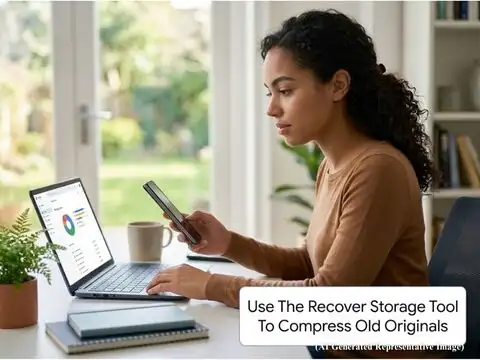
Use The Recover Storage Tool To Compress Old Originals
If you uploaded photos in Original Quality before and want to compress them all at once, there is a built-in tool for this. Go to photos.google.com/quotamanagement and look for the Recover Storage option. This compresses all previously uploaded Original Quality photos down to Storage Saver quality, which can free up significant space, though the compression is permanent and the original quality cannot be recovered.
2/8
7 Simple Tricks To Free Up To 20 GB Of Google Photos Storage
Google gives every account just 15 GB of free storage, shared across Photos, Gmail, and Drive. Most people hit that wall faster than they expect. Before you pay for more space, these seven tricks can recover a surprising amount of storage for free.
3/8
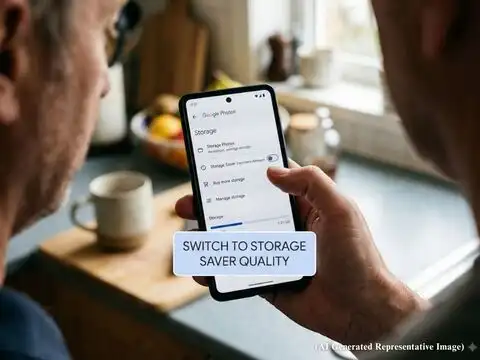
Switch To Storage Saver Quality Right Now
If your backup is set to Original Quality, you are burning through storage fast. Switch it to Storage Saver under Photos Settings, then Backup, then Backup Quality. According to Google's own support documentation, Storage Saver compresses photos above 16MP and videos above 1080p, which can dramatically cut storage use without visible quality loss on phone screens.
Amazon Top Deals
POWERED BY

Crompton Ozone 75 Litres Desert Air Cooler for home | Large & Easy Clean Ice Chamber | 4-Way Air Deflection | High Density Honeycomb Pads | Everlast Pump | Auto Fill| 3 Year Brand Warranty
₹9,798Buy Now43%
OFF
LG 32 L Convection Microwave Oven (MC3286BRUM, Black, 360° Motorised Rotisserie for Bar-be-queing, 301 Auto Cook Menu, Stainless steel cavity, Indian Cuisine, Tandoor Se, Steam Clean & Diet Fry)
₹18,689Buy Now22%
OFF

4/8
Delete Large Videos First, They Are The Biggest Culprit
One 2-minute 4K video can eat 400MB to 500MB on its own. Open Google Photos, tap your profile picture, then Manage Storage, then Large Photos and Videos. Sort by file size and work through the biggest files first, since a single large video can account for 2GB or more of your storage on its own. Delete what you no longer need, then empty the trash.

5/8
Clear Out Blurry Photos And Screenshots
You almost certainly have hundreds of screenshots and blurry photos backed up that you will never look at again. In the Manage Storage screen, Google surfaces these automatically. The first time most users do this cleanup, they find old blurry shots from older phone cameras and years worth of accumulated screenshots they had completely forgotten about. Deleting these alone can recover several gigabytes.
6/8
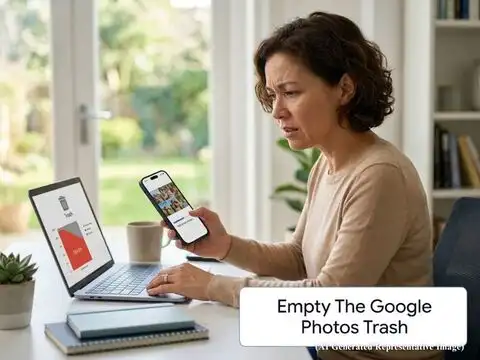
Empty The Google Photos Trash
This one trips a lot of people up. Deleting photos does not immediately free up storage. They sit in the trash for 60 days and still count against your quota the whole time. Google's storage management guide confirms this clearly. Go to Library, then Trash, and permanently delete everything in there to actually reclaim that space right away.

7/8
Clean Up Gmail And Google Drive Too
Most people forget that Photos, Gmail, and Drive all share the same 15 GB pool. Large email attachments in Gmail and old files sitting in your Drive trash are quietly eating into your Photos storage. Regularly clearing out unnecessary emails with attachments and files in your Drive trash directly frees up space across your entire Google account, including Photos.
8/8
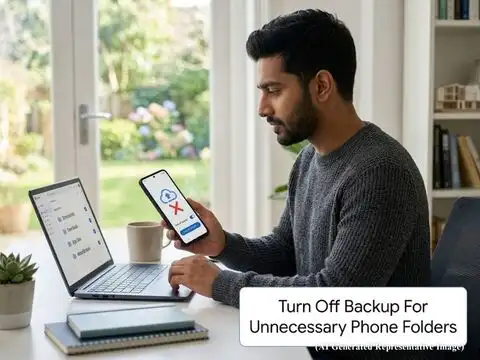
Turn Off Backup For Unnecessary Phone Folders
By default, Google Photos may be backing up every folder on your phone, including meme folders, WhatsApp downloads, and app cache images. Turning off backup for folders containing memes, reaction videos, and duplicate images copied across multiple folders can stop hundreds of unwanted files from reaching the cloud in the first place. Go to Photos Settings, then Backup, then Manage Device Folders to control this.